Does IPTV Work on Samsung Smart TV (Tizen) in Canada?
Yes, IPTV can work on a Samsung Smart TV running Tizen, but the setup depends on the TV’s model year, the IPTV app available in your region, and the service’s compatibility. In most cases, you install a compatible player from the Samsung App Store, enter the playlist or login details supplied by your IPTV provider, and connect the TV to a reliable internet connection.
That last part matters. IPTV is video delivered over the internet, so a weak Wi-Fi signal can cause buffering even when the TV and app are set up correctly. I usually recommend wired Ethernet for the main TV when it’s practical. Before troubleshooting, note what time the buffering happens: evening congestion, a particular channel, or a specific program can point to different causes.
This guide explains how to use IPTV on Samsung Tizen in Canada, what to check before paying, how installation usually works, and what to know about CAD pricing, payment methods, trials, refunds, and streaming on multiple devices.
What IPTV Means on a Samsung TV
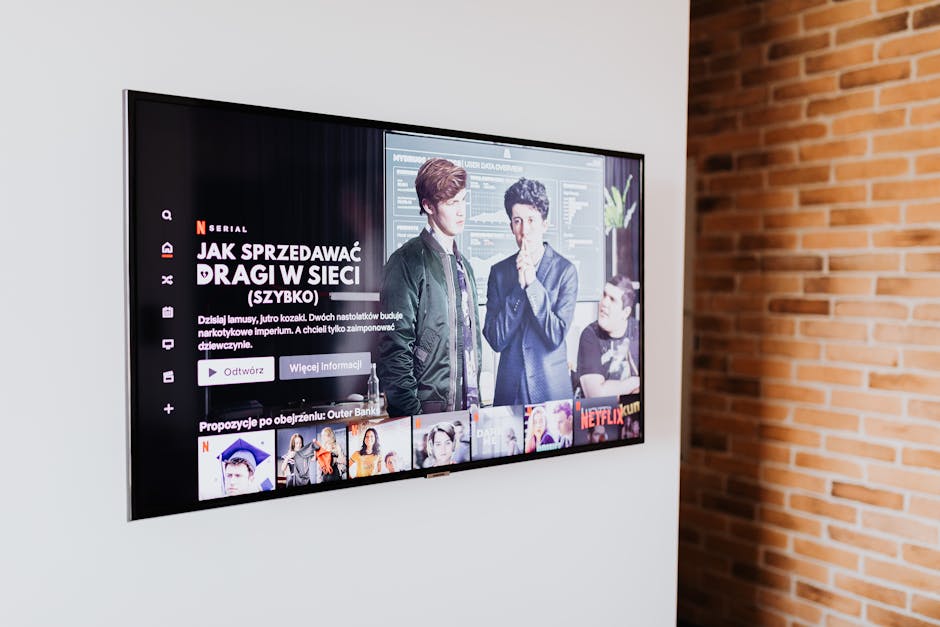
IPTV stands for Internet Protocol Television. Instead of receiving channels through an antenna, cable line, or satellite dish, an IPTV service delivers video through your internet connection. On a Samsung TV, the service is commonly accessed through a compatible IPTV player app.
The player is not necessarily the service itself. Think of it like a media player: it may display a provider’s channel list or video library, but the provider supplies the content access details. A Samsung smart TV IPTV app may ask you to sign in, enter a playlist address, or use an activation code. The exact method depends on the app and provider.
Before subscribing, make sure the provider has the https://bizzmarkblog.com/iptv-on-nvidia-shield-do-i-actually-get-better-4k-stability/ rights to offer the content in Canada. Channel availability, regional restrictions, and licensing can vary. A very large channel count by itself does not establish that a service is reliable, legal, or compatible with your TV.
Check Samsung Tizen Compatibility First
Samsung TVs use Tizen, Samsung’s smart TV operating system. Tizen is different from Android TV, Google TV, and Fire TV, so you can’t assume that an app available on one platform will also be available on Samsung. App availability can also vary by TV model, model year, country, and Samsung App Store region.
Before you choose a service, check the following:

- Your TV model and year: Find the model number in the TV’s settings or on its label. Older TVs may have fewer supported apps or limited software updates.
- Your Samsung App Store: Search the Apps section on the TV for the exact player your provider recommends. Don’t rely only on an app list from another country or device type.
- The provider’s supported devices: Ask whether the service works with your specific Samsung model and which player it expects you to use.
- Your home network: Confirm that the TV gets a stable connection where it sits. If possible, test with Ethernet.
If your preferred player is not available for your Samsung model, you may still have options. A provider might support a different Samsung-compatible app, or you can connect an external device such as an Android TV box, Apple TV, or Fire TV Stick. Check the provider’s instructions before buying extra hardware.
IPTV Installation Guide Samsung: Typical Setup Steps
The following IPTV installation guide Samsung owners can use describes the usual process. Menus and app names differ, so follow the provider’s current instructions for the specific player you choose.
- Connect the TV to the internet. Open the Samsung network settings and connect to Wi-Fi or plug in an Ethernet cable. For the main TV, wired Ethernet is my first choice when the router or a network port is nearby.
- Update the TV. Check for a Samsung software update. An older firmware version can affect app availability or stability.
- Open the Samsung App Store. Use the TV’s Apps section to search for the player recommended by your provider. Install it only if it is available for your model and region.
- Get your account details. The provider may supply a username and password, an activation code, or a playlist URL. Use the exact details provided; avoid copying credentials from unofficial posts or shared screenshots.
- Enter the details in the player. Follow the player’s on-screen setup. Some apps require activation through a separate website, while others let you enter the information directly on the TV.
- Load the guide and test playback. Give the channel list time to load, then test a few channels and any features you plan to use. If the guide is blank, confirm the login details and ask the provider whether the playlist is active.
- Secure your account. Keep your login private, use a strong password if available, and review the provider’s device limits and account rules.
What If There Is No Compatible App?
Don’t install unknown files on the TV or follow instructions that require bypassing Samsung’s normal app safeguards. First ask the provider whether another supported player is available for Tizen. If not, consider an external streaming device that the provider officially supports. This can be a simpler path than trying to force an incompatible app onto a Samsung TV.
Internet Speed, Wi-Fi, and Buffering
There isn’t one guaranteed speed that makes every IPTV stream work perfectly. Video quality, the number of people using your connection, Wi-Fi interference, and the provider’s own server performance all matter. As a practical starting point, aim for a stable connection of roughly 10–15 Mbps per HD stream and 25 Mbps or more per 4K stream, then leave extra capacity for other household use. These are planning figures, not a promise that every stream will run smoothly.
For example, two people watching separate HD streams may need around 20–30 Mbps of steady capacity for those streams alone. A household with video calls, downloads, and gaming at the same time should have additional headroom. Also remember that a speed test beside the router may not reflect the signal reaching a TV in another room.
If buffering occurs, check whether it happens at a particular time. If it is mostly during busy evening hours, note that pattern. If only one channel buffers while others play, the issue may be with that stream or the provider rather than your whole internet connection. Try Ethernet, restart the TV and router, and test another device before making changes to the account.
Pricing, Payments, Trials, and Refund Terms in Canada
Canadian customers should confirm the total cost in Canadian dollars before subscribing. Ask whether the quoted amount is CAD, whether taxes are included, what subscription period it covers, and whether renewal is automatic. Avoid signing up until you understand how to cancel and whether the payment creates a recurring charge.
Some IPTV providers advertise Interac-only payment. If a provider, including IPTV Jacom, says it accepts payment only through Interac e-Transfer, verify the current terms directly before sending money. Interac e-Transfer is widely used in Canada, but it is not the same as a credit-card payment and may offer fewer ways to dispute a completed transfer. Never send money to a recipient name that doesn’t match the provider’s instructions, and don’t share your online banking password or security answers.
Where offered, a free 24-hour trial can help you check whether the service works on your Samsung TV and home network before committing. Use the trial to test the channels and features you actually care about, at the times you normally watch. A trial should have clear terms: confirm whether payment details are required, when the trial ends, and whether you must cancel it yourself.
A 7-day refund window may also be advertised. Read the written refund conditions before paying, including what counts iptv vod library size as an eligible issue, how to request a refund, and whether the window starts at purchase or activation. Ask for the terms in writing rather than relying on a verbal promise. Trial availability, refund eligibility, prices, and payment methods can change, so confirm them directly with the provider at the time you sign up.
Multi-Device Streaming: One to Five at Once
Some subscriptions allow streaming on between one and five devices at once, but the number depends on the plan. “Devices supported” and “simultaneous streams” are not necessarily the same thing: a service may let you install an app on several devices while limiting how many can play at the same time.
Want to know something interesting? before choosing a plan, ask these questions:
- How many streams can play at once under this specific plan?
- Does watching on a phone count against the same limit as the Samsung TV?
- Can family members use the account in different rooms or locations?
- Are there extra fees for adding another simultaneous stream?
- What happens if the household reaches the limit?
More simultaneous streams also mean more internet capacity is needed. If three TVs are playing at once, each stream uses bandwidth, and other devices continue to share the connection. Test the setup during a busy household period, not only when everyone else is offline.
About Channel Counts and “4K” Claims
You may see promotions that say “55,000+ live channels.” Treat a figure like that as an advertised example, not a guarantee that every channel is available in Canada, works on your Samsung TV, or plays at a consistent quality. Ask for a current channel list and test the specific channels you care about during a trial if one is available.
The same caution applies to 4K. A 4K label alone does not tell you the actual resolution, bitrate, stability, or whether the stream is genuinely delivered in 4K. Your Samsung TV, IPTV player, internet connection, and source stream all have to support the format. Look for clear technical details and test playback rather than relying on a headline.
Check What to confirm Compatibility Your Samsung TV model, Tizen version, and supported player Price Total cost in CAD, taxes, subscription period, and renewal terms Payment Whether Interac e-Transfer is the only option and who receives it Trial and refunds How the free 24-hour trial and 7-day refund window work in writing Streams Whether the plan allows one to five simultaneous streams Performance Expected speed, stream quality, and troubleshooting supportIs IPTV on Samsung Tizen a Good Fit?
IPTV on Samsung Tizen can be convenient if your TV supports a compatible player, the service is properly licensed, and your internet connection is stable. The setup is usually straightforward once you have the correct app and login details. The main complications are app availability on older models, unclear subscription terms, and inconsistent performance over weak Wi-Fi.
Before paying, confirm the service works with your exact TV, get the CAD total and renewal terms in writing, and understand the Interac e-Transfer, trial, refund, and simultaneous-stream rules. Use a trial to test real viewing conditions where possible, and prefer Ethernet for the main TV. If setup still fails, record the exact error, the app name, your TV model, and the time buffering occurs; those details make troubleshooting much faster.